 Split-view Position
Location: Tools menu - Options - Other Tab.
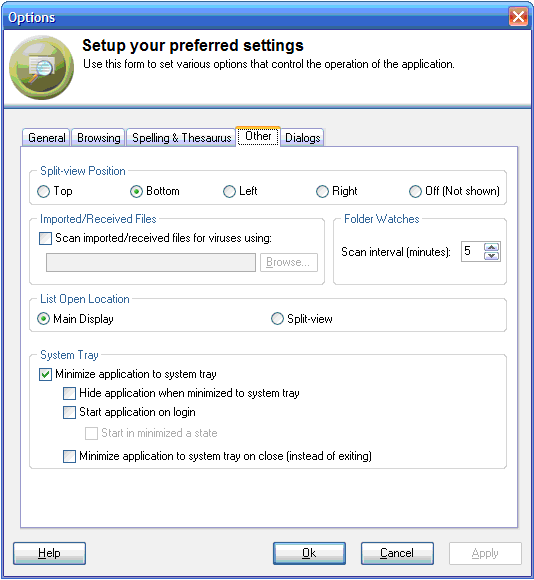
Split-view PositionOn the other tab you can specify the default location in which the Split View will appear within the Content Pane.
Files received from others as part of a knodule import can be scanned by a virus scanner (purchased separately from an anti-virus vendor) before they are incorporated into your personal files. Check the box and enter the location of the executable for the virus scanner (check you anti-virus software documentation for the appropriate file).
KnowledgeWorkshop scans folders configured in the Folder Watch feature to create topics for newly discovered files. Enter the interval in minutes between these background scans.
KnowledgeWorkshop displays result lists for searches, keyword index selections, highlighted items and discussion postings. This option enables you to define where these lists appear - either in the Main Display or the Split View. Highlighted items and discussion postings can be shown in a preview panel before being opened fully. The preview panel will always appear in the alternate display area to the one chosen to display the list. Double clicking an item in a list will open it in the Main Display, Alt + Double clicking will display it in the Split View.
These settings determine the behavior of KnowledgeWorkshop when the
program is minimized or closed. To
minimize KnowledgeWorkshop click on the [-] button in the top right of
the application. A
button  will normally appear on the start toolbar. If
the [Minimize application to system tray] box is checked a small
will normally appear on the start toolbar. If
the [Minimize application to system tray] box is checked a small  icon will also appear in the toolbar system tray (where the
time is normally shown). If
the [Hide application when minimized] box is checked only the system tray
icon will be visible.
icon will also appear in the toolbar system tray (where the
time is normally shown). If
the [Hide application when minimized] box is checked only the system tray
icon will be visible.
You may also configure KnowledgeWorkshop to start automatically every time you start your computer and/or log in by checking the [Start application on log in] box. The program will start in full screen mode unless the [Start in minimized state] box is checked.
By default if you click on the [X] in the top right of the application,
KnowledgeWorkshop will close. If
you check the [Minimize application to system tray on close] box, KnowledgeWorkshop
will not close completely but will remain in a ready state for quick access
when you need it. Double
click on the icon in the system tray to maximize the program.
Right click
on the icon and select Exit to completely close the program. The
program can also be closed by selecting Exit from the File menu.