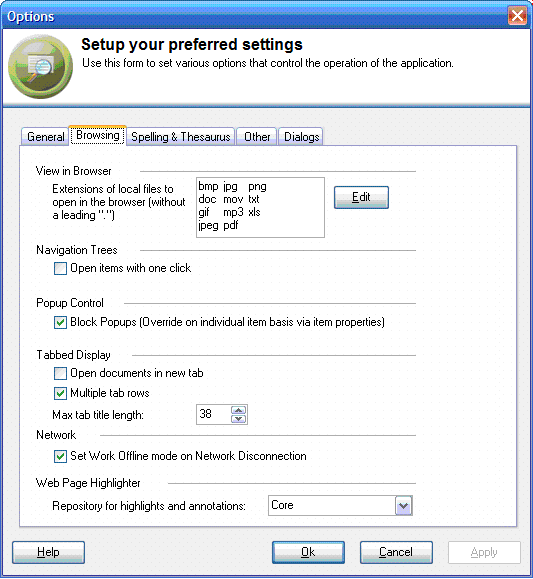
 View in Browser
Location: Tools menu - Options - Browsing Tab.
View in BrowserKnowledgeWorkshop is capable of displaying files other that web pages in its Content Pane. These include Microsoft Office files, some images and animations, and portable document format (pdf) files. You must specify if you want these files to open in the Content Pane instead of their native applications by adding their extensions to the "View in browser" list. Click on the [Edit] button to add and remove the extensions from the list. This setting it can be overridden for individual files by right clicking on the item and selecting [Open in] and then [Native Application The software that is configured in the folder options- file types menu of the file explorer to open when a file with a particular extension is activated. For example, files with the .doc extension are configured to open in Microsoft Word.].
By default KnowledgeWorkshop displays items after a double click and displays information about the item in the header panel, Associated Items panel and Split View when single clicked. This behavior can be changed to a single click open by checking the box. If set alt+Click shows the associations and header information.
Turn popup blocking on by checking the box in this section. When a popup is encountered in a page an icon will appear on the task bar. If you wish to display the popup you may re-enable popups from the View menu on the Main Menu bar. Individual pages can be configured to allow popups on the browsing tab of the (overriding this setting) page properties.
Check the "Open items in new tab" box if you wish all items to open in a new browser tab by default. This property can be set for individual items in the item properties dialog. Note, that for an item with an extension not listed among the file types to open in the Content Pane the item will be opened in a separate window by the application which normally opens the file.
A right and left horizontal scrolling arrow appears when more items are open than can be simultaneously displayed in the tabs above the display window. This enables you to display the off-screen tabs. Alternately you may configure KnowledgeWorkshop to display multiple rows of tabs by checking the [Multiple tab rows box]. The maximum length of each individual tab can also be configured by entering a pixel value or using the up and down arrows within the [Max tab title length] box. Note: this may limit the amount of information about the topic that can be displayed in the tab.
KnowledgeWorkshop can automatically detect when your computer is disconnected from the network and will show items that are available offline in dark text.
Under some circumstances where network cards have been added and removed this feature falsely detects that the computer is disconnected. To prevent this problem you should clear the checkbox for setting work offline mode.
Repository for highlights..: When using multiple repositories you must choose one where the information about items you have highlighted is stored. You can switch this setting dynamically, choosing a shared repository when highlighting items that are stored there so other users can see them, then switching back to your local repository for highlights applied to private items.
.