Apply, Emphasize, Remove & Print Highlights
With KnowledgeWorkshop you can highlight web content and email authored
by yourself or others - you do not need to have access to the content
source code or permission of the site owner. Web
page highlights are permanent and will reappear when you revisit the site.
They are
also intelligent and can adjust for minor changes in the content and organization
of the page. However,
significant page changes will produce unpredictable results so you should
avoid highlighting highly dynamic sites such as the front page of a news
service like CNN.
Applying highlighting to web content
There are two approaches to applying highlighting -
Tip: You
can jump to the next or previous highlight on a page by right clicking
anywhere in the page and selecting [Next highlight] or [Previous highlight].
This provides
a convenient way to move quickly to important information.
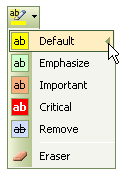
To change the style of the highlight to be applied
Click the down arrow within the highlight button
 in the menu bar.
Select the style of highlight you wish to apply.
All highlights
subsequently applied will have this style. Highlighting
can be reapplied to a previously highlighted area to change its style.
To emphasize / de-emphasize highlights
Emphasis increases the contrast between highlighted text and non-highlighted
text within a web page, making the highlighted areas stand out even more.
Either:
Select [Emphasize Highlights] and then choose
either:
[All Highlights] to make all highlights applied
to the page irrespective of style stand out.
[Current Style] to make only highlights that
match the current style of the highlighted area stand out.
[None] to return the relative contrast between
highlighted and non-highlighted text to normal.
To remove highlighting
There are two approaches to removing highlighting. Either:
Drag the cursor over the highlighting you
wish to remove. You
may erase sections of highlighting within a highlighted area.
Click on the highlight button again to turn
off erasing.
To print highlights
Highlights apply background color to the text. Internet
Explorer does not print background colors by default. To
see your highlights on the printed page you must change this setting in
the Internet Options.
Open the Tools menu
Select [Internet Options]
Choose the Advanced tab
Under Printing check the box for "Print background
colors and images"
Warning: All
background colors and images on all web pages will be printed which may
use a significant amount of color ink.
Sharing highlights with others
Highlights can be exported in a knodule
and then seen by other users of KnowledgeWorkshop when they import your
knodule. In
addition, highlights can be applied to items in a shared repository and
seen by other users viewing these items. Other
users of the repository can also apply their own highlights that you in
turn will see. However,
you must designate the shared repository as the storage location for your
highlights in Tools - Options - Browsing
for them to be visible.
 Tip: Take
a look at the video tutorial on highlighting and annotating
Tip: Take
a look at the video tutorial on highlighting and annotating