You can share knowledge with other users of KnowledgeWorkshop by exporting any collection to a file called a knodule A single XML file containing a user selected set of topics, notes, tasks
and newsgroups with their highlighting, association and rating information.
(knowledge module). Knodules can contain your entire collection
or a subset of them. You
can specify what is included - down to individual information elements
on selected branches of your tree. Highlights,
associations and even local files can optionally be included or excluded.
To export
a knodule A single XML file containing a user selected set of topics, notes, tasks
and newsgroups with their highlighting, association and rating information.
:
Either
Click the Export Wizard icon
on the Main Toolbar.
OR
From the [File] text menu select [Import/Export] then [Export Wizard].
Export Type- Click the Export as an XML file (Knodule) radio button and then the [Next] button.
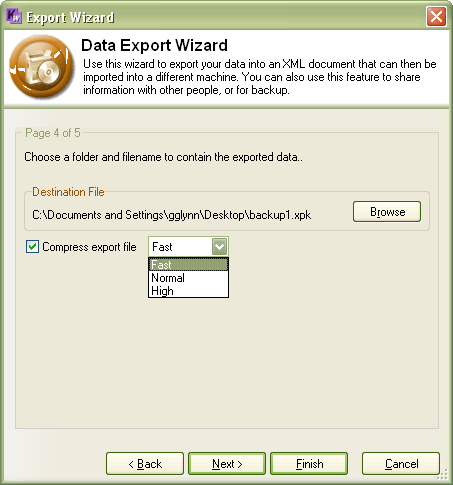
Select the destination in which to store the export
file and the degree of compression to apply. More
compression creates a smaller file but takes longer to process.
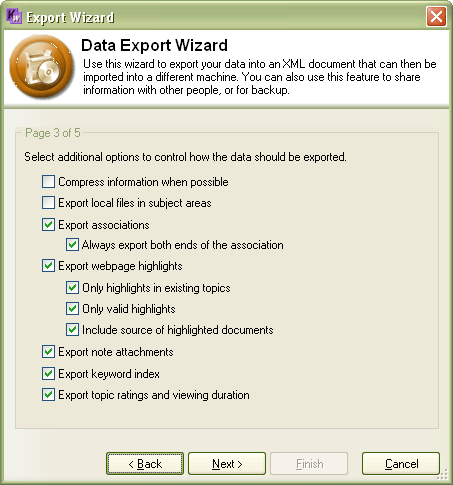
Choose whether local files, attachments etc are to be included in the knodule by clicking on the box next to each option. If you do not choose to convert repositories within you tree to folders the properties of the repository will be exported but not its contents.
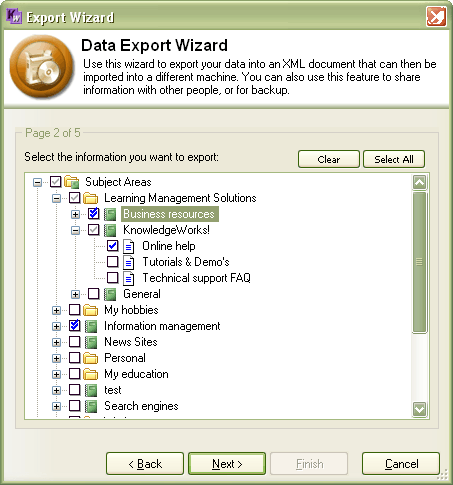
Select the items that you want to export from the tree.
Expand a branch by clicking on it's +.
Click within the box at a branch point to mark it for inclusion in the knodule. Branches that do not have all the parents selected will be shown at the root level in the exported tree.
A double check indicates that all items within a folder are marked.
A single faded check indicates that at least one of the items within a folder is selected but not all.
A single solid check indicates that a particular single item is selected. Checking an item selects all of it's child items.
You can individually select items within a folder but selecting an item with children will automatically select all the children.
You may choose all items by clicking the [Select All] button. This is particularly useful when using the export process to perform a complete backup of all of your data. The [Clear] button de-selects all items.
Expand the Administration item and Reference Formats to select which, if any, to include.
Select the [Next] button when you have finished
making your selections.

Click on the [Finish] button to create the knodule at the specified location.