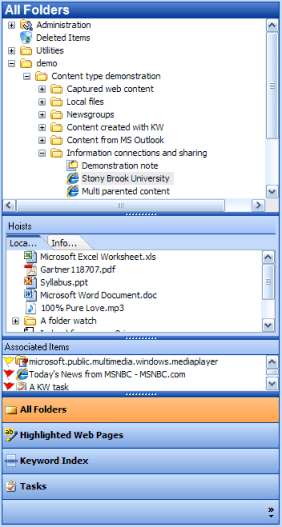
The All Folders mode Nav Pane displays three groups of information.
|
The All Folders panel displays a hierarchical tree of the items you have added to your database. Click on the [+] or [-] to expand and collapse the branches. A box around an item's icon indicates it is a snapshot, its content is stored in the KW database. The Administration item contains shortcuts for viewing and managing attributes, templates, folder watches, reference formats and item locks. The Deleted Items shows items that have been deleted from the tree and enables you to restore or permanently delete them. An Unfiled items folder may appear at the base of the tree. This will contain items exported from other applications such as MS Outlook for which you have not yet designated a parent.
|
|
The Hoists panel displays branches selected in the All Folders panel. Simply right click on an item in the All Folders tree and select Hoist to display it here. Multiple hoists can be displayed in the tabbed interface. Mouse over a tab and click on the [x] that appears to close the tab. |
|
The
Associated
Items panel displays items
that have been associated with the Item chosen in the All Folders or Hoists
area. By default the Associated Items panel is collapsed at startup
and will expand when information needs to be displayed within it. The
icon next to the association A link or cross reference between two information elements that explains
how and why the connection exists.
's name indicates if it is an web page or file, note
Actions Mouse over each item in the tree to see its full title, URL and description. This information is intended to help you choose the right item before spending the time downloading it from the Internet or generating its display. This folder can be deleted and will reappear as necessary. By default single clicking on an Item displays its header information in the header display window. Double clicking displays the information item in the Main Display. Alt + Double clicking opens the content in the Split View. This behavior can be changed within the options menu so that single clicking displays the item and an alt+click, ctrl+click or shift+click displays the header information. |
 ,
discussion
,
discussion  or a task
  . The flag to
the left of the item indicates the strength of the association. Associations
are automatically sorted by their strength. Mousing
over the associated item displays a caption explaining why the association
was created. Clicking on the associated item displays its contents within
the the
. The flag to
the left of the item indicates the strength of the association. Associations
are automatically sorted by their strength. Mousing
over the associated item displays a caption explaining why the association
was created. Clicking on the associated item displays its contents within
the the