Advanced Searching
You can access the advanced search menu by clicking on the advanced
search icon  in the search toolbar of the Main
Menu or by selecting [Advanced Search] from the Edit text menu. Searches
can be performed at a very granular level, down to individual folders,
notes etc by selecting the appropriate criteria. Items
matching the search criteria are displayed in the Search
Results tab where they can be sorted and grouped.
in the search toolbar of the Main
Menu or by selecting [Advanced Search] from the Edit text menu. Searches
can be performed at a very granular level, down to individual folders,
notes etc by selecting the appropriate criteria. Items
matching the search criteria are displayed in the Search
Results tab where they can be sorted and grouped.
Select what to look for and where to look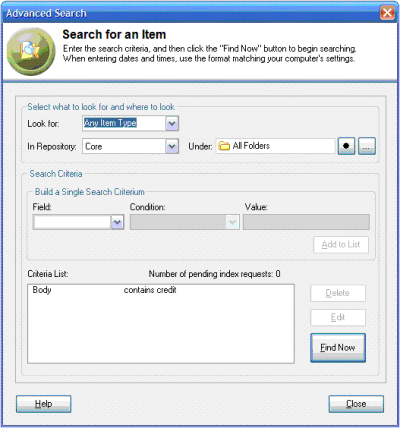
Look For-
Choose
the item type you are looking for. This
can be either:
In Repository-
Click on
the drop down and check each of the repositories that you want to search.
Under-
Select
the branch of the All Folders tree you wish to search. The
All Folders root is selected by default.
Use the  button to browse your information tree structure and select
a folder. All
folders and items below the selected folder will be included in the search.
button to browse your information tree structure and select
a folder. All
folders and items below the selected folder will be included in the search.
Use the  button to select the container of the most recently displayed
item.
button to select the container of the most recently displayed
item.
Search Criteria
Searches can contain multiple criteria. They
are built one at a time and then added to the list. When
you have specified all of the criteria you require you can execute the
search with the [Find Now] button.
Build a Single Search Criterion
Select the field you want to search in. Fields
are organized into groups to make them easier to find and select. The
following table indicates with an X which fields are in which groups.
It does
not matter from which group you select the field. For
example, if you select the Description field from the All Email Fields
group, the description fields in All Files, Notes, Email, Discussion Posts
and Text will be searched (assuming you have not restricted the search
to a specific item in Step 1 above).
Note: Attribute
fields will further list the names of attributes
that you have created so that you can specifically search for values
within them.
|
Field Group |
Field |
|
Title |
Body |
Author |
Author Email |
Category |
Description |
URL |
Content Creation Date |
Content Last Accessed |
Content Last Modified |
Sent |
Received |
From |
To |
CC |
BCC |
Importance |
Start Date |
Finish Date |
Owner |
Percent Complete |
Status |
Priority |
All Custom Attributes |
Boolean Attributes |
Integer Attributes |
Text Attributes |
Date and Time Attributes |
Date Attributes |
Time Attributes |
Floating Point Attributes |
Monetary Attributes |
Item Creation |
Item Last Modified |
|
All File |
x |
x |
x |
x |
x |
x |
x |
x |
x |
x |
|
|
|
|
|
|
|
|
|
|
|
|
|
|
|
|
|
|
|
|
|
|
|
|
|
All Note |
x |
x |
x |
x |
x |
x |
|
x |
x |
x |
|
|
|
|
|
|
|
|
|
|
|
|
|
|
|
|
|
|
|
|
|
|
|
|
|
All Email |
x |
x |
|
|
x |
x |
|
|
|
|
x |
x |
x |
x |
x |
x |
x |
|
|
|
|
|
|
|
|
|
|
|
|
|
|
|
|
|
|
All Discussion Posting |
x |
x |
|
|
x |
x |
|
|
|
|
x |
|
x |
|
|
|
|
|
|
|
|
|
|
|
|
|
|
|
|
|
|
|
|
|
|
All Task |
x |
|
|
|
x |
x |
|
|
|
|
|
|
|
|
|
|
|
x |
x |
x |
x |
x |
x |
|
|
|
|
|
|
|
|
|
|
|
|
Text |
x |
x |
x |
x |
x |
x |
|
|
|
|
|
|
|
|
|
|
|
|
|
|
|
|
|
|
|
|
|
|
|
|
|
|
|
|
|
Custom Attributes |
|
|
|
|
|
|
|
|
|
|
|
|
|
|
|
|
|
|
|
|
|
|
|
x |
x |
x |
x |
x |
x |
x |
x |
x
|
|
|
|
Date & Time |
|
|
|
|
|
|
|
x |
x |
x |
x |
x |
|
|
|
|
|
x |
x |
|
|
|
|
|
|
|
|
|
|
|
|
|
x |
x |
Select the condition
for the field selected in step 4. The
table below indicates which conditions can be selected for which fields.
|
Field |
Condition |
|
contains |
doesn't contain |
is empty |
is not empty |
equals |
not equal to |
less than |
less than or equals |
greater than |
between |
Yesterday |
Today |
Tomorrow |
Last 7 |
Next 7 |
Last 30 |
Next 30 |
Last week |
This week |
Next week |
Last Month |
This Month |
Next Month |
|
Title |
x |
x |
x |
x |
x |
x |
|
|
|
|
|
|
|
|
|
|
|
|
|
|
|
|
|
|
Body |
x |
x |
x |
x |
|
|
|
|
|
|
|
|
|
|
|
|
|
|
|
|
|
|
|
|
Author |
x |
x |
x |
x |
x |
x |
|
|
|
|
|
|
|
|
|
|
|
|
|
|
|
|
|
|
Author Email |
x |
x |
x |
x |
x |
x |
|
|
|
|
|
|
|
|
|
|
|
|
|
|
|
|
|
|
Category |
x |
x |
x |
x |
x |
x |
|
|
|
|
|
|
|
|
|
|
|
|
|
|
|
|
|
|
Description |
x |
x |
x |
x |
x |
x |
|
|
|
|
|
|
|
|
|
|
|
|
|
|
|
|
|
|
URL |
x |
x |
x |
x |
x |
x |
|
|
|
|
|
|
|
|
|
|
|
|
|
|
|
|
|
|
Content Creation Date |
|
|
x |
x |
x |
x |
x |
x |
x |
x |
x |
x |
x |
x |
x |
x |
x |
x |
x |
x |
x |
x |
x |
|
Content Last Accessed |
|
|
x |
x |
x |
x |
x |
x |
x |
x |
x |
x |
x |
x |
x |
x |
x |
x |
x |
x |
x |
x |
x |
|
Content Last Modified |
|
|
x |
x |
x |
x |
x |
x |
x |
x |
x |
x |
x |
x |
x |
x |
x |
x |
x |
x |
x |
x |
x |
|
Sent |
|
|
x |
x |
x |
x |
x |
x |
x |
x |
x |
x |
x |
x |
x |
x |
x |
x |
x |
x |
x |
x |
x |
|
Received |
|
|
x |
x |
x |
x |
x |
x |
x |
x |
x |
x |
x |
x |
x |
x |
x |
x |
x |
x |
x |
x |
x |
|
From |
X |
x |
x |
x |
x |
x |
|
|
|
|
|
|
|
|
|
|
|
|
|
|
|
|
|
|
To |
x |
x |
x |
x |
x |
x |
|
|
|
|
|
|
|
|
|
|
|
|
|
|
|
|
|
|
CC |
x |
x |
x |
x |
x |
x |
|
|
|
|
|
|
|
|
|
|
|
|
|
|
|
|
|
|
BCC |
x |
x |
x |
x |
x |
x |
|
|
|
|
|
|
|
|
|
|
|
|
|
|
|
|
|
|
Importance |
|
|
|
|
x |
x |
|
|
|
|
|
|
|
|
|
|
|
|
|
|
|
|
|
|
Start Date |
|
|
x |
x |
x |
x |
x |
x |
x |
x |
x |
x |
x |
x |
x |
x |
x |
x |
x |
x |
x |
x |
x |
|
Finish Date |
|
|
x |
x |
x |
x |
x |
x |
x |
x |
x |
x |
x |
x |
x |
x |
x |
x |
x |
x |
x |
x |
x |
|
Owner |
x |
x |
x |
x |
x |
x |
|
|
|
|
|
|
|
|
|
|
|
|
|
|
|
|
|
|
Percent Complete |
x |
x |
x |
x |
x |
x |
x |
x |
x |
x |
|
|
|
|
|
|
|
|
|
|
|
|
|
|
Status |
|
|
x |
x |
x |
x |
|
|
|
|
|
|
|
|
|
|
|
|
|
|
|
|
|
|
Priority |
|
|
|
|
x |
x |
|
|
|
|
|
|
|
|
|
|
|
|
|
|
|
|
|
|
All Custom Attributes |
x |
x |
x |
x |
x |
x |
|
|
|
|
|
|
|
|
|
|
|
|
|
|
|
|
|
|
Boolean Attributes |
x |
x |
x |
x |
x |
x |
|
|
|
|
|
|
|
|
|
|
|
|
|
|
|
|
|
|
Integer Attributes |
x |
x |
x |
x |
x |
x |
|
|
|
|
|
|
|
|
|
|
|
|
|
|
|
|
|
|
Text Attributes |
x |
x |
x |
x |
x |
x |
|
|
|
|
|
|
|
|
|
|
|
|
|
|
|
|
|
|
Date and Time Attributes |
|
|
x |
x |
x |
x |
x |
x |
x |
x |
x |
x |
x |
x |
x |
x |
x |
x |
x |
x |
x |
x |
x |
|
Time Attributes |
|
|
x |
x |
x |
x |
x |
x |
x |
x |
x |
x |
x |
x |
x |
x |
x |
x |
x |
x |
x |
x |
x |
|
Date Attributes |
|
|
x |
x |
x |
x |
x |
x |
x |
x |
x |
x |
x |
x |
x |
x |
x |
x |
x |
x |
x |
x |
x |
|
Floating Point Attributes |
|
|
x |
x |
x |
x |
x |
x |
x |
x |
|
|
|
|
|
|
|
|
|
|
|
|
|
|
Item Creation |
|
|
x |
x |
x |
x |
x |
x |
x |
x |
x |
x |
x |
x |
x |
x |
x |
x |
x |
x |
x |
x |
x |
|
Item Last Modified |
|
|
x |
x |
x |
x |
x |
x |
x |
x |
x |
x |
x |
x |
x |
x |
x |
x |
x |
x |
x |
x |
x |
Enter the value that
you want to compare against the condition selected in step 5.
Click on the [Add to
List] button. Your
criterium will appear in the Criteria List box.
Criteria List
Delete unwanted criteria
from the list using the [Delete] button. Criteria
are saved between searches so old ones may be present.
Change existing criteria
using the [Edit] button.
When you are satisfied
with your criteria set click on the [Find Now] button to execute your
search.
Note: Entering multiple search
criteria results in ANDing, the result set will match all of the selected
criteria. For
example, if you enter "horse" in both the Title and
Body fields, the search will return only results that have horse in the
title and
in the body.
Number of pending index requests:
As items
are added to KnowledgeWorkshop their contents are automatically indexed
so that they can be searched rapidly. Items
to be indexed are queued and processed in the background. The
number of items awaiting indexing is shown in the Number of pending index
requests line. This number is likely to increase if you automatically
add a large number of items to your tree, for example, when generating
tree items by crawling
a web site.