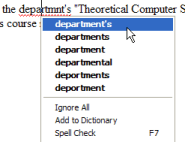
The notes editor has a built in spell checker that dynamically checks spelling as you write and underlines misspelled words with a wavy red line.
Right click on a misspelled word to evoke the in context menu which will list suggested corrections.
Click on the correctly spelled word to replace the misspelled word.
If the word is spelled correctly click on [Add to Dictionary] to add the word to your personal dictionary.
If you want the spell checker to ignore all identical words in the note click on [Ignore All]
Select [Spell Check] from the menu to display the spell checker interface which presents additional options as shown in the following picture.
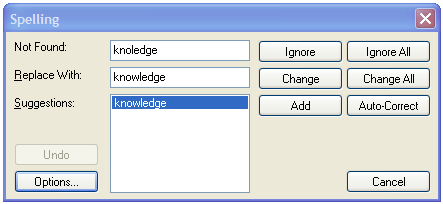
If the correct spelling does not appear in the suggestions list you may manually enter it in the Replace With text box and click on the [Change] button to replace the misspelled version.
Click on the [Options] button to set the behavior of the spell checker and choose the dictionaries the spell checker should use.

Use the Dictionaries box to select the main dictionaries supplied with KnowledgeWorkshop to use. Additional dictionaries for other languages and technical fields can be downloaded from Addictive Software and imported using the [Locate Dictionaries] check box. Note that this is not an LMS site and LMS disclaims any and all responsibility for the content of this site and the use and support of main dictionaries. The content of main dictionaries is predefined by Addictive Software and cannot be edited or changed. Main dictionaries shipped with KnowledgeWorkshop are placed in a subfolder called "Dictionaries" of the KnowledgeWorkshop installation folder (C:\Program Files\LMS\KWorkshop2 by default). We recommend that you store additional Main Dictionaries that you download in this location as they will then automatically appear in the list.
Use the Custom Dictionary drop down menu to choose the personal dictionary to which new words should be added using the [Add to Dictionary] button.
Click the [Dictionaries...] button to select, create and delete custom dictionaries. Word spelling will be checked against each custom dictionary that is checked here and in the main dictionary list. With the exception of the custom.dic (the custom dictionary generated by Microsoft Word) each checked dictionary will also appear in the Custom Dictionary drop down in the Spelling Options dialog page. Custom.dic will only be visible if you have Word installed on your computer.
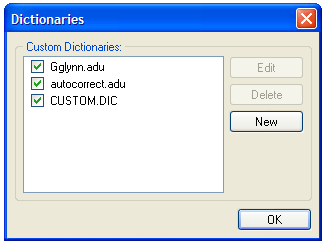
To edit the content of a custom dictionary select it from the list and click on the [Edit] button.
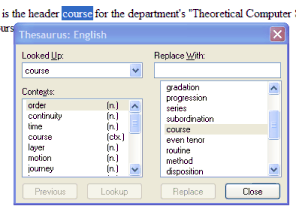
To use the thesaurus place your cursor anywhere within a word and either select [Thesaurus] from the [Tools] text menu or hold down the shift key and hit F7.
To replace a word select the replacement from the list or manually type it into the text entry box then click on the [Replace] button.
To look up another word either type it into the "Replace With" box or select a word from the list and then click on the [Lookup] button.