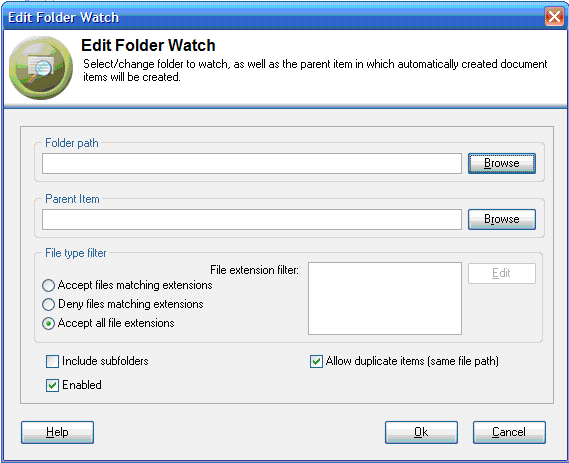
Location: Tools - Manage Folder Watches - Click Edit or New
This form is used to enter the properties of a folder watch.
Enter the file system path for the folder on which you wish to set a watch or click on the [Browse] button to select the folder using the file explorer.
Files and folders discovered in a folder watch will be created in your tree where they will be attached to a parent item i.e. an anchor point. Enter the path to this parent item in the entry box or select the item by clicking the adjacent [Browse] button.
The file type filter determines which file types will generate corresponding items in your tree.
Three radio buttons which control how it operates:
Accept files matching extensions: Only files having extensions listed in the filter box will be accepted.
Deny files matching extensions: All files other than those having extensions listed in the filter box will be accepted.
Accept all file extensions: All files, regardless of file extension, will be accepted. When this item is checked the file extension box and [Edit] button are disabled.
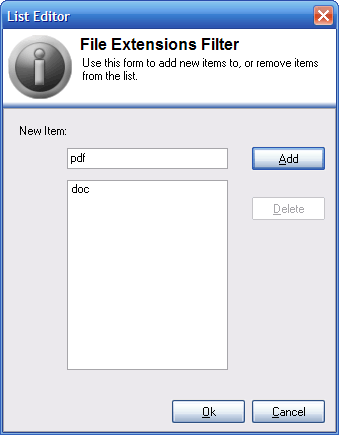
[Edit]: The [Edit] button displays a dialog that is used to add or delete extensions to/from the file extension list. When adding file extensions, it is not necessary to place a '.' before the extension. Common extensions include "doc" for Word document, "xls" for Excel spreadsheets and "ppt" for PowerPoint files.
Include subfolders: Checking the "Include subfolders" box applies the watch to all subfolders within the watched folder, otherwise it applies only to files at the first level in the folder.
Allow duplicate items: Checking the "Allow duplicate items" box will create an item for a newly discovered file under the designated parent iotem even if an item with a URL pointing at that file already exists elsewhere in your knowledgebase.
Enabled: Checking the "Enabled" box turns the watch on. It is checked by default. To suspend a watch without deleting it uncheck this box.